
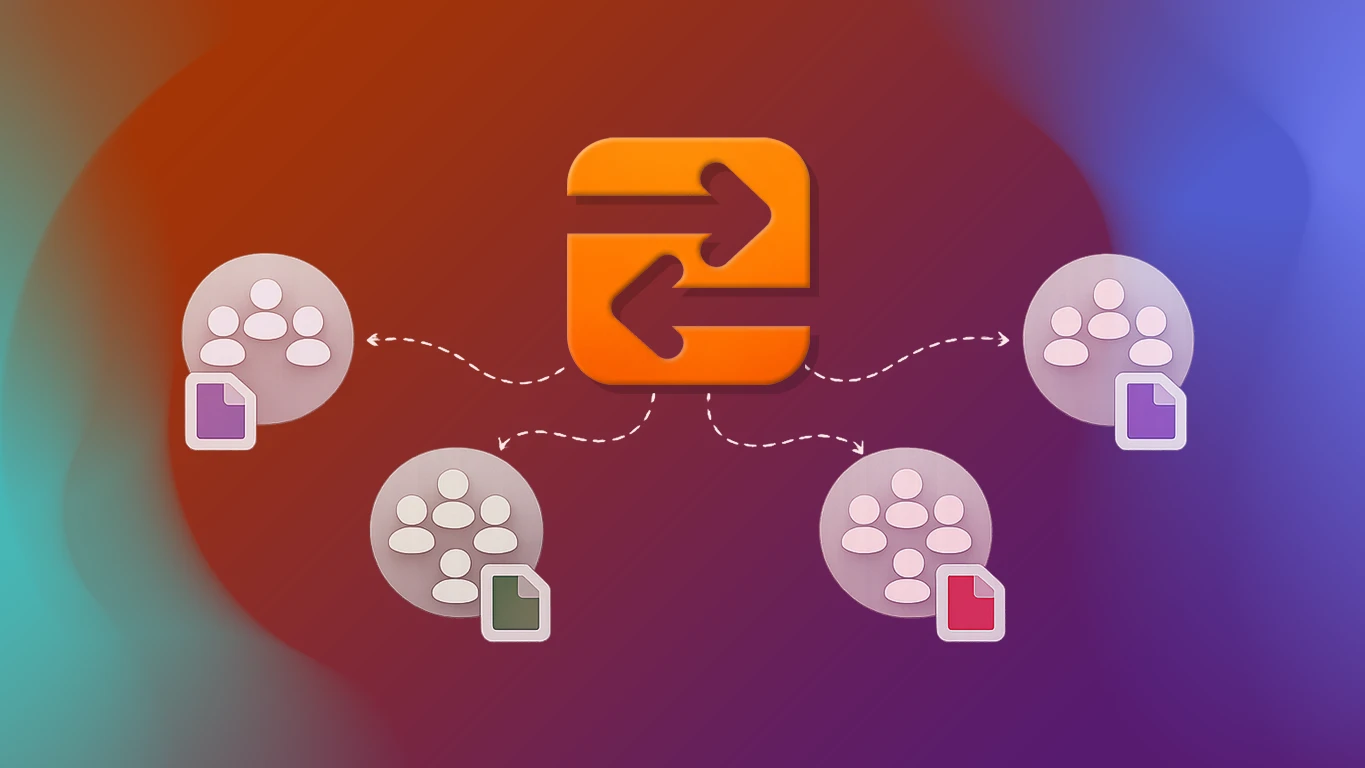
Every time you send a file, you're building a list of people you share with. Without a way to manage that list, you end up re-entering the same addresses, hunting through old emails for a contact, or manually assembling a group of recipients every time. Aldoo Transfer solves this with a built-in contacts panel that turns your sharing history into a reusable address book — and lets you organize those contacts into groups for one-step batch sending.
What Are Contacts and Groups?
Contacts in Aldoo Transfer are the people you share files with. Each contact is stored with their email address and a record of your sharing activity with them. Groups are named collections of contacts that you can target as a single unit — send a share to a group and every member receives it, without entering addresses one by one.
The contacts panel is the central place to manage both. It lives in your account dashboard and integrates directly into the send-by-email and Request Files workflows.
How It Works
- Open the contacts panel from your Aldoo Transfer dashboard.
- Add contacts manually by email, import a list in bulk, or let the app suggest additions from your recent recipients.
- Organize contacts into named groups — clients, team members, project collaborators, or any grouping that fits your workflow.
- When sending a share by email or setting up a Request Files access list, pick a contact or group instead of typing addresses.
- Every share you send is recorded against each contact, so you always know who received what and when.
Key Features
1. Adding Contacts
Add anyone to your contacts by entering their email address. Once added, they're available across every sending workflow in Aldoo Transfer — share links by email, Request Files access lists, and team-based sharing. You don't need to re-enter addresses you've used before.
2. Bulk Import
If you already have a contact list elsewhere, you can import it in bulk rather than adding people one by one. This makes it practical to migrate an existing client list or team roster into Aldoo Transfer without manual data entry.
3. Recent Recipients
Anyone you've sent a share to automatically appears in a dedicated Recent Recipients tab. From there, adding them to your permanent contacts takes a single click. You build your address book naturally as you use the product — no separate setup step required.
4. Contact Groups
Group contacts into named collections for batch sending. Create a group for each client, project team, or department you send files to regularly. When you send a share by email, select the group and every member receives the link in one step. Groups are also available as an access option on Request Files links, restricting incoming uploads to members only.
5. Last Share Reference
The contacts panel records the last share you sent to each person. You can see at a glance when you last sent something to a contact and jump directly to that active transfer from the contact row — without searching through your shares list. This is useful when following up on a delivery or checking whether a recipient has downloaded their files.
6. Integration with Send by Email
When delivering a share link by email directly from Aldoo Transfer, you can address it to individual contacts, entire groups, or a mix of both. The sending interface pulls from your contacts panel in real time, so your full address book is always available without switching screens.
7. Integration with Request Files
Request Files access lists support contacts and groups directly. Instead of typing out a list of email addresses every time you restrict a receive link, pick the relevant contacts or a group. If the group changes, you update the group once and every Request Files link using it stays current.
Common Use Cases
1. Recurring Client Deliveries
Freelancers and agencies that deliver files to the same clients repeatedly benefit most from saved contacts. Create a contact for each client, send shares by selecting their name, and use the last-share reference to follow up without digging through your history.
2. Batch Sending to a Team
When distributing files to a team — updated brand assets, project documents, release builds — create a group for that team and send once. All members receive the link simultaneously, and the share analytics show who has viewed or downloaded it.
3. Controlled File Collection
Use a group as the access list for a Request Files link. Only group members can upload. This is useful for collecting files from a known set of contributors — a design team submitting assets, a group of contractors sending invoices, or clients submitting project materials — without opening the link publicly.
4. Managing Multiple Projects
Create a separate group per project or client engagement. Each group acts as a distribution list for that project's shares and a ready-made access list for any Request Files links associated with it. When a project ends, the group remains in your account for future reference or reuse.
5. Building an Address Book Over Time
If you don't want to set up contacts in advance, the Recent Recipients tab does the work passively. Share files as you normally would, and anyone you've sent to appears there. Review it periodically and add the regulars with one click. Over time you accumulate an address book without any dedicated setup.
Getting Started
To access your contacts, log in to your Aldoo Transfer account and open the Contacts section from the dashboard. From there you can add your first contact, create a group, or review your recent recipients. The panel is available on all paid plans and integrates immediately with the send-by-email and Request Files features.
If you're new to Aldoo Transfer, contacts and groups become more valuable the more you use the platform. Start with a few key contacts, create one group, and the workflow builds itself from there.